

Blog
I didn’t realize how much Finder was slowing me down until I switched to Bloom

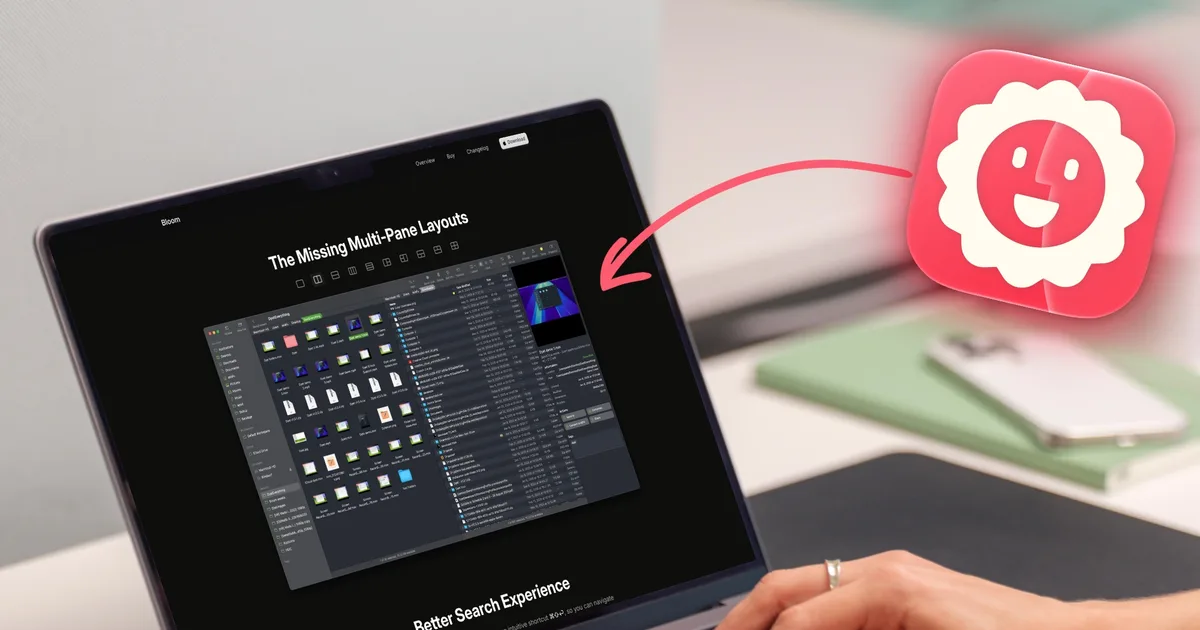
I have used Finder for as long as I have owned a Mac, and for most of that time, I never gave it a second thought. You open a window, dig through some folders, drag a file where it needs to go, and move on with your day. That’s just how it works, right?
Except it should not. Constantly opening new windows to move a file from one folder to another, waiting on searches that dig through my entire drive when I only want results from one folder, resizing the same columns over and over because they never remember their width (this one is especially galling) should not be normal.
None of it feels like a big deal on its own. But add it up over months and years of daily use, and it’s a lot of wasted clicks. Even then, I was not specifically searching for a solution, because in truth, I didn’t even know the problem existed. That is, until I discovered Bloom, and that changed everything. It has become one of my favorite Mac utilities, so let’s talk about it.
Multiple panes changed how I work
The first thing that hooked me was Bloom’s multi-pane layout. Instead of juggling separate Finder windows to move files around, Bloom lets you split a single window into several panes. There are up to 12 configurations to choose from, and you can set any one as your default setup.
My go-to setup is three panes, a bigger one on the left and two smaller ones stacked on the right. The main three folders I access are the main directory, the Downloads folder, and the Documents folder. I keep the main directory open in the left pane, while the two other folders get the small right pane. Any time I want to move a file between the three folders, I can drag and drop without opening a new window.
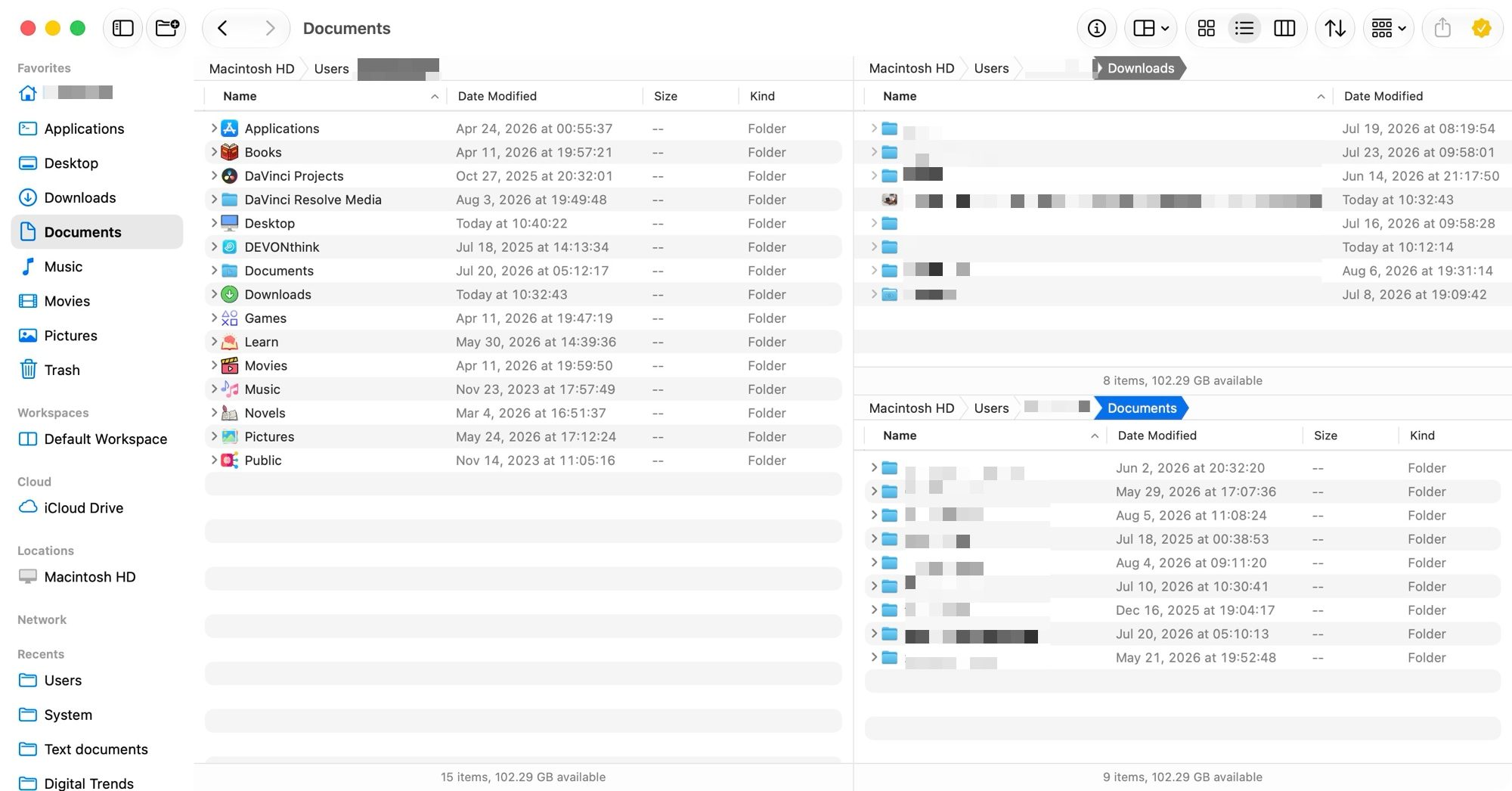
Even better, you can save these pane setups as Workspaces. I have a few saved for different parts of my routine, so when I sit down to work, I pull up the right workspace from the toolbar or a keyboard shortcut, and everything is exactly where I left it.
A floating window that follows you around
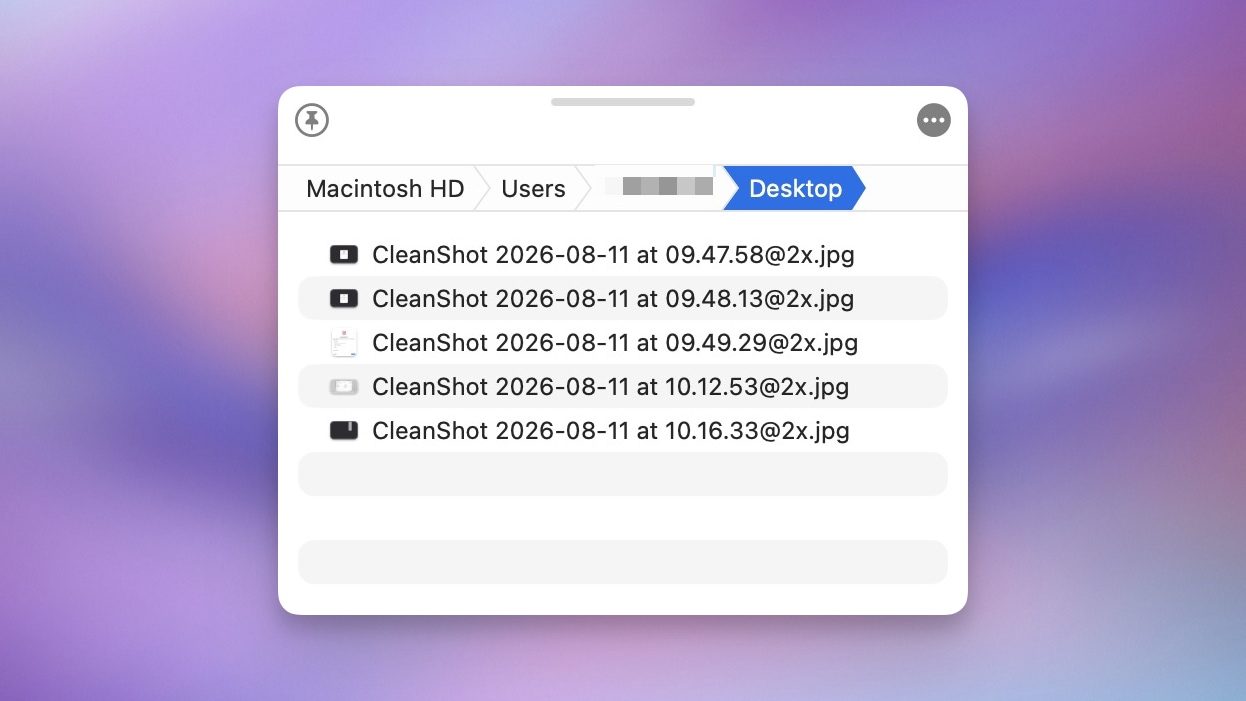
One of my favorite features of Bloom is something called the Portal, a small window that can float on top of whatever app you’re using. Think of it as a shelf for files you need to grab repeatedly while working somewhere else. I use it constantly whenever I need to pull files into another app without losing my place or breaking focus on what I’m actually doing.
Search finally makes sense
The one feature that saves me more time than anything else in Bloom is its search capabilities. I can hit a global shortcut, type a folder name, and jump straight to it from anywhere. It’s far superior to the Go to Folder feature in Finder.
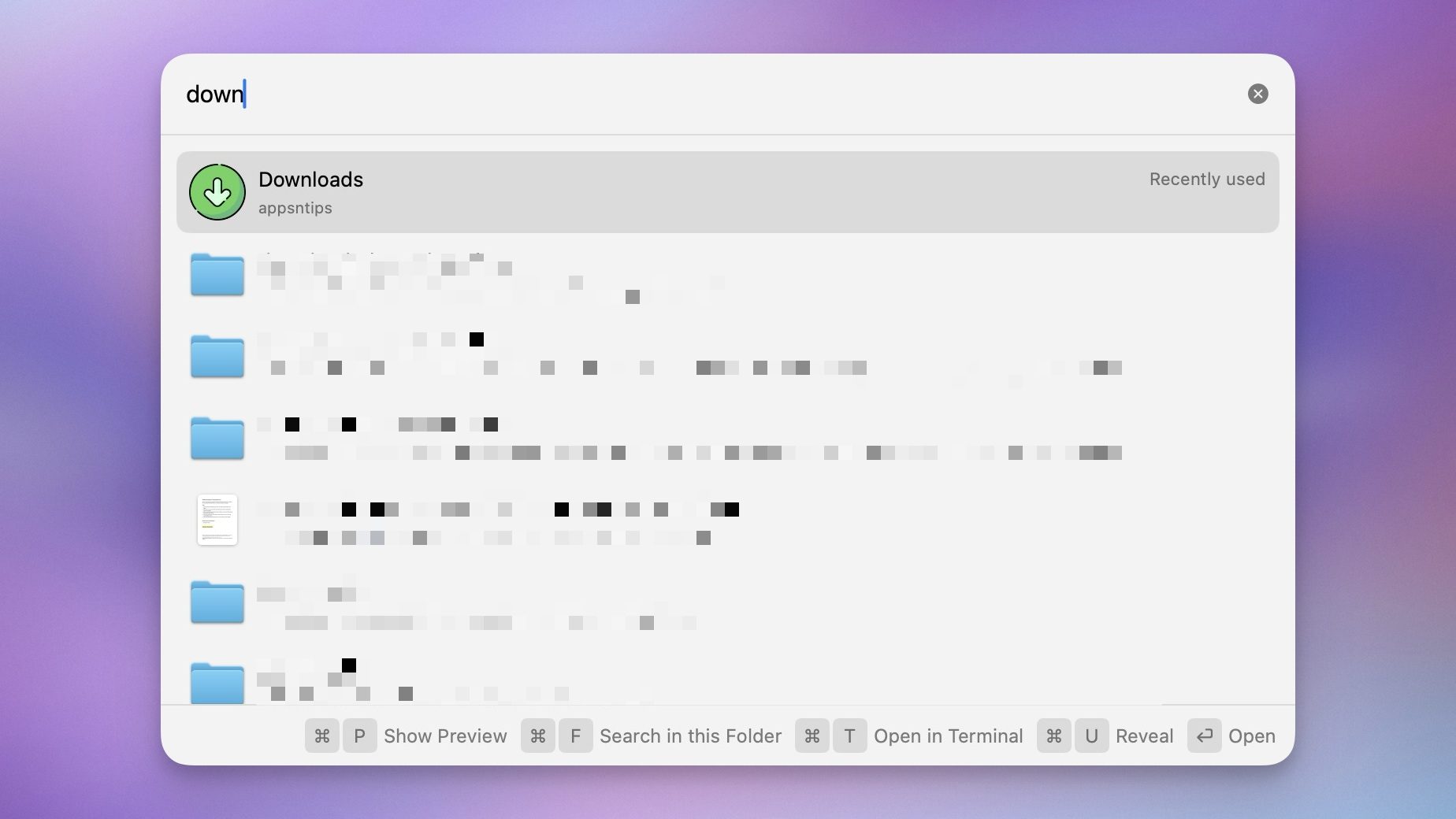
Another thing I like about Bloom is that by default it searches inside the folder and not my entire Mac directory. I can hit Command-F, and instead of searching my entire drive as Finder does by default, which is both needless and time-consuming, Bloom searches the folder you’re currently in.
The little things I didn’t know I needed
Beyond the big features, Bloom is full of small touches that quietly save time. It can peek inside zip files and other archives without making me extract anything first, and lets me partially extract files.
The Columns resize themselves automatically instead of me fussing with them every time a filename is too long. This is my biggest annoyance with the Finder, and I am so relieved that I don’t have to deal with it anymore.

There’s a menu bar app for quick access to your favorites, folders, and workspaces, plus built-in image editing tools and a shortcut to pop open your current folder in Terminal.
There’s also Footprints, which logs every file operation you make, so if you delete something you shouldn’t have or a batch rename goes sideways, you can undo it. Finally, it packs a regex-powered rename tool, which is a genuinely useful upgrade over Finder’s basic version.
Should you make the switch?
Bloom is a simple app that can quietly slide into your workflow and improve your life. It looks and feels familiar enough that you can start using it immediately. That said, there’s a surprising amount of depth for anyone willing to dig in.
If you manage even a moderate number of files on your Mac, I think you’ll notice the difference within a day. If you ever found Finder annoying or just not sufficient, I highly recommend you buy this app. I have been using this app for a month or so, and I cannot imagine going back to the Mac’s Finder.