
Blog
This Setting Change Could Save You A Lot Of Google Storage Space

Since the early days of smartphones, storage space continues to be a persistent problem. More specifically, running out of it. For Android users, that often translates to your Google account storageand with Google now counting Android device backups toward your account storage limits, it’s worth reviewing your backup settings to check for any redundancies. After all, no one wants to pay for more cloud storage space if they don’t actually need it.
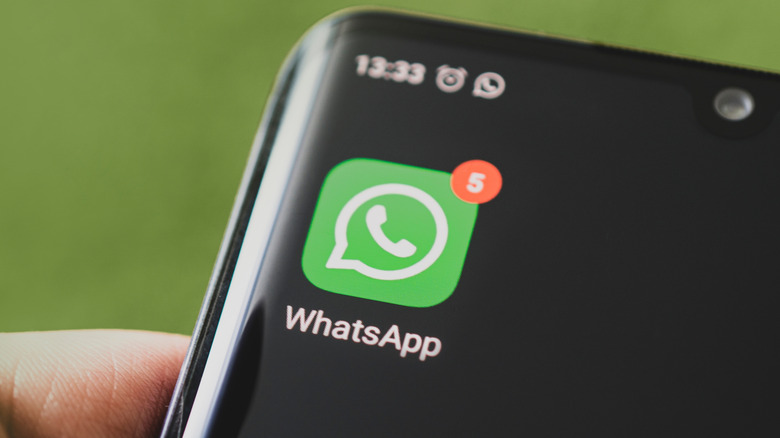
Android device backups themselves typically only need a small amount of storage, but there’s an overlooked setting that might be wasting gigabytes of extra space in your cloud: backing up WhatsApp media through Google Photos. Turns out, this giant messaging app is probably already saving those very same files to the cloud. So by opting in for separate WhatsApp backups to your Google account storage, you’re actually backing them up twice.
It’s like this: WhatsApp automatically downloads any photos and videos you open and places them into a specific folder on your device. And if you chose to back up every device folder to Google Photos (which you probably did during initial setup way back when), then those downloaded files might also be getting uploaded to Google Photos. The result is the same images and videos being stored twice to your Google account. Messaging apps eat up storage as it is, but this issue doubles the trouble.
Change your Google settings instead of turning off WhatsApp backups
If you send and receive a ton of photos and videos through WhatsApp, you could be wasting dozens of gigabytes of duplicated data over the course of a year. Backing up isn’t a bad idea, but backing up twice is just unnecessary. So, rather than turning off WhatsApp backups altogether, the smarter solution is to simply stop Google Photos from backing up WhatsApp folders. That way, you can keep allowing this Facebook-owned app to do its chat backups without creating duplicates in your Google account.
For most Android users, the easiest thing to do is to change your Google Photos settings to stop backing up the folders that contain WhatsApp images and videos. Open the Google Photos app, hit your profile picture in the top right corner, tap “Photos settings,” then hit “Backup.” From there, scroll down to “Back up device folders” and toggle off WhatsApp.
WhatsApp users can also adjust the specific app’s backup frequency to daily, weekly, monthly or never within WhatsApp’s chat backup settings. You can also reduce backup size by excluding videos, which are typically going to be the largest files included in backups. Past WhatsApp backups can also be removed separately through Google One’s WhatsApp backup management tools.